
How to Download Photos from a Threads Carousel
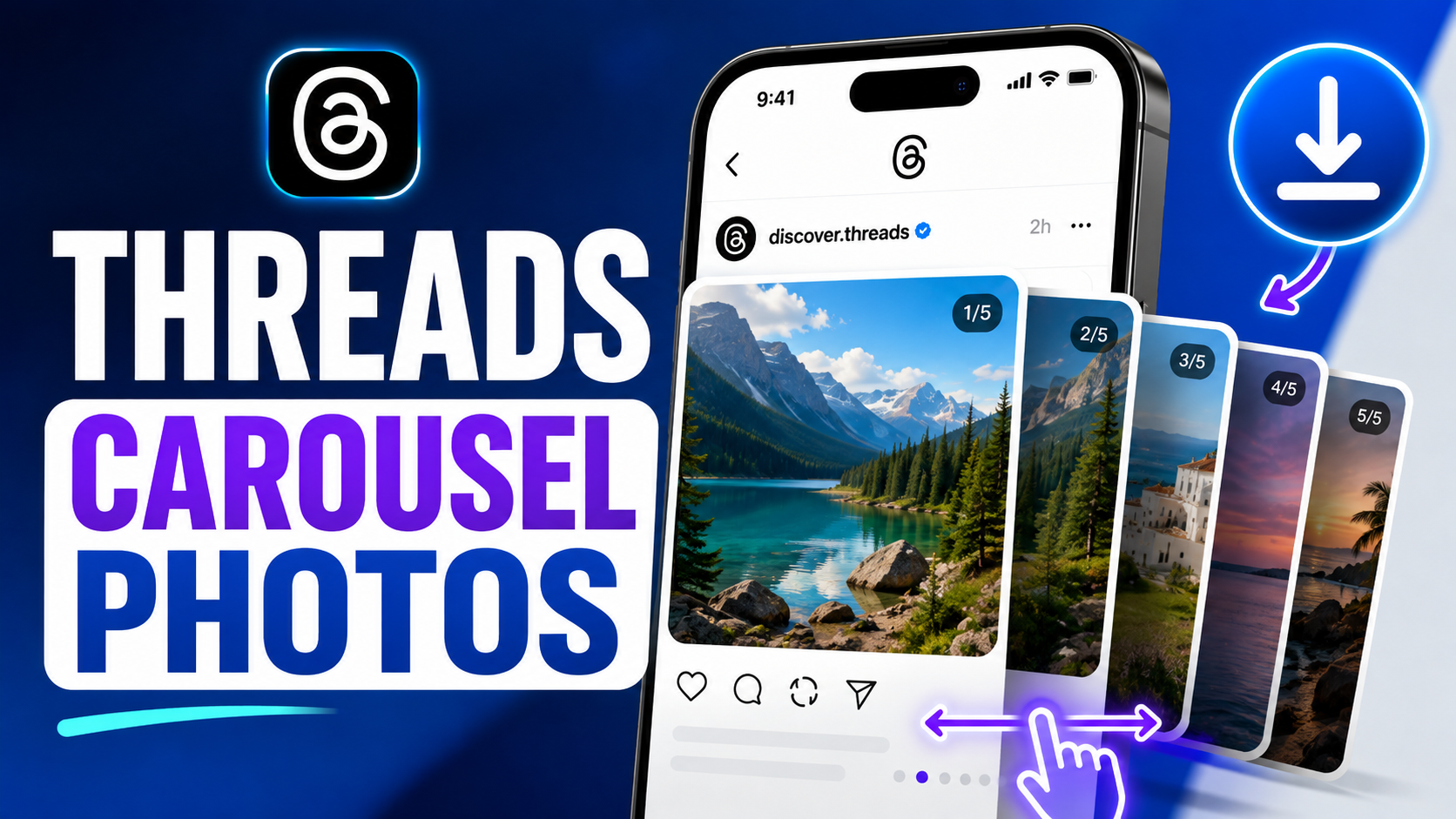
A multi-image Threads post is different from a single-photo post because one URL can represent several media items. The clean workflow is to copy the carousel post link once, paste it into ThrDown's Photo Downloader, then save the individual images the tool can resolve from that post.
You should not have to copy a different URL for every slide.
Quick answer: Open the multi-photo Threads post, copy the post link, paste it into the Threads Photo Downloader, and let the tool list the supported images it finds. Download the photos you actually need and verify each file before reusing it.
What Counts as a Threads Carousel?
In this guide, “carousel” simply means a Threads post containing multiple media items that you can move through within the same post.
It may be:
- several photos;
- photos plus other media;
- a multi-item post where you only want one or two images.
You do not need to know the platform's internal term for the post type. What matters is that one post URL contains more than one media item.
Step 1: Open the Exact Multi-Image Post
Navigate to the Threads post containing the photos.
Before copying the link, make sure you are on the individual post rather than the creator's profile. A carousel downloader needs one specific post URL so it can inspect the media attached to that post.
Step 2: Copy the Post Link Once
Use Threads' share control and choose Copy link.
You do not need to swipe to each image and copy a new URL. The media items belong to the same post, so the post link is the useful input.
Step 3: Paste the URL into the Photo Downloader
Open the Threads Photo Downloader, paste the URL, and start the lookup.
When the post is supported, ThrDown can display the image options it finds from the multi-photo post.
The result should be treated as a list of available media, not as a promise that every carousel on Threads will always expose every item in the same way. Platform behavior and post structure can vary.
Step 4: Choose the Photos You Actually Need
If several images are returned, download only the items you need.
This has three advantages:
- it keeps your Downloads folder cleaner;
- it avoids accidentally saving media you did not intend to keep;
- it makes it easier to verify which image corresponds to which slide.
If ThrDown provides a batch option in the current interface, you can use it when you genuinely need the full set. Otherwise, saving items individually is perfectly fine.
Step 5: Verify the Files After Downloading
Open the downloaded photos and check:
- that the expected image was saved;
- that the file opens normally;
- that you did not accidentally save a preview or unrelated image;
- that the dimensions and quality are suitable for your permitted use.
ThrDown's safest quality wording is highest available quality rather than “untouched original upload.” Social platforms can process and serve different image variants, so a downloader should not promise a creator's original local file unless that is technically verified.
Why Download the Image File Instead of Taking a Screenshot?
A screenshot captures your screen, not just the photo.
It can include:
- interface controls;
- rounded corners;
- status bars;
- scaled display pixels;
- other UI elements around the image.
Saving the available image file gives you a cleaner result for legitimate offline reference or archiving. It also avoids having to crop every slide manually.
That does not mean the downloaded image is automatically the creator's untouched upload. It means you are saving an available image file instead of a screen capture.
What About Mixed Photo and Video Carousels?
If a post includes both images and video, the Photo Downloader should be used for the photo items it can resolve.
For a video item, switch to the Threads Video Downloader if needed.
Mixed posts are a good example of why each ThrDown feature page has a distinct intent: the Photo Downloader should not pretend video and image behavior are identical.
If Some Carousel Images Are Missing
Work through these checks:
Reopen the source post
Make sure all the expected slides still appear in Threads.
Confirm the link is for the individual post
A profile URL is not enough.
Retry once after refreshing
If the post is public and supported but one item did not resolve, refresh the tool and try the post once more.
Check whether the missing item is actually a video
A multi-item post can contain mixed media. The missing “photo” may not be an image at all.
Treat persistent gaps as a support issue
If the same public post consistently returns only part of its visible photo set, document the URL and which slide is missing rather than downloading repeatedly.
Save Carousel Photos on iPhone
On iPhone, browser-downloaded images may appear in Files → Downloads depending on how the download is delivered.
Open the image file and use the Share sheet to save it to Photos when appropriate. If you downloaded several images, verify them in Files before moving the full set into your photo library.
For single-photo iPhone instructions, see How to Download Threads Photos on iPhone.
Save Carousel Photos on Android
On Android, check Chrome's Downloads list or the device's Files app after saving the images.
If a photo does not immediately appear in Gallery, confirm that the file exists in Downloads first. Gallery apps can index downloaded folders differently depending on the device.
Avoid Low-Quality Carousel Workflows
A few shortcuts create more problems than they solve:
- Do not screenshot every slide if you need clean image files.
- Do not install an unknown APK just because a website claims it is required.
- Do not copy profile links when you need one specific carousel.
- Do not assume every image is an original upload just because it looks high resolution.
- Do not bulk-save private media you are not authorized to access.
FAQ
Can ThrDown download multiple photos from one Threads post?
The Photo Downloader is intended to detect supported images in single- and multi-image posts. The exact number returned depends on the source post and current support.
Do I need a separate link for each carousel image?
No. Use the URL of the individual multi-image post.
Are carousel images downloaded in original quality?
ThrDown should describe results as the highest available quality it can resolve for the post, not promise an untouched creator upload unless that is technically verified.
What if one slide is a video?
Use the video-specific tool for video media.
Can I download a private carousel?
Only use the private-content workflow when you already have legitimate permission to view the post. ThrDown does not bypass privacy controls.
Download Photos from a Threads Carousel
Paste the individual multi-image post URL into the Threads Photo Downloader and save the supported photo items you need.
Respect copyright, privacy, and the creator's rights when storing or reusing downloaded images.